Create JHAs Instantly: The Best Mobile App Solution
Use a mobile app for job hazard analysis (JHA) creation to assess task risks, record controls, and build field-ready documents with templates and saved JSAs.
by Sheldon Huang
|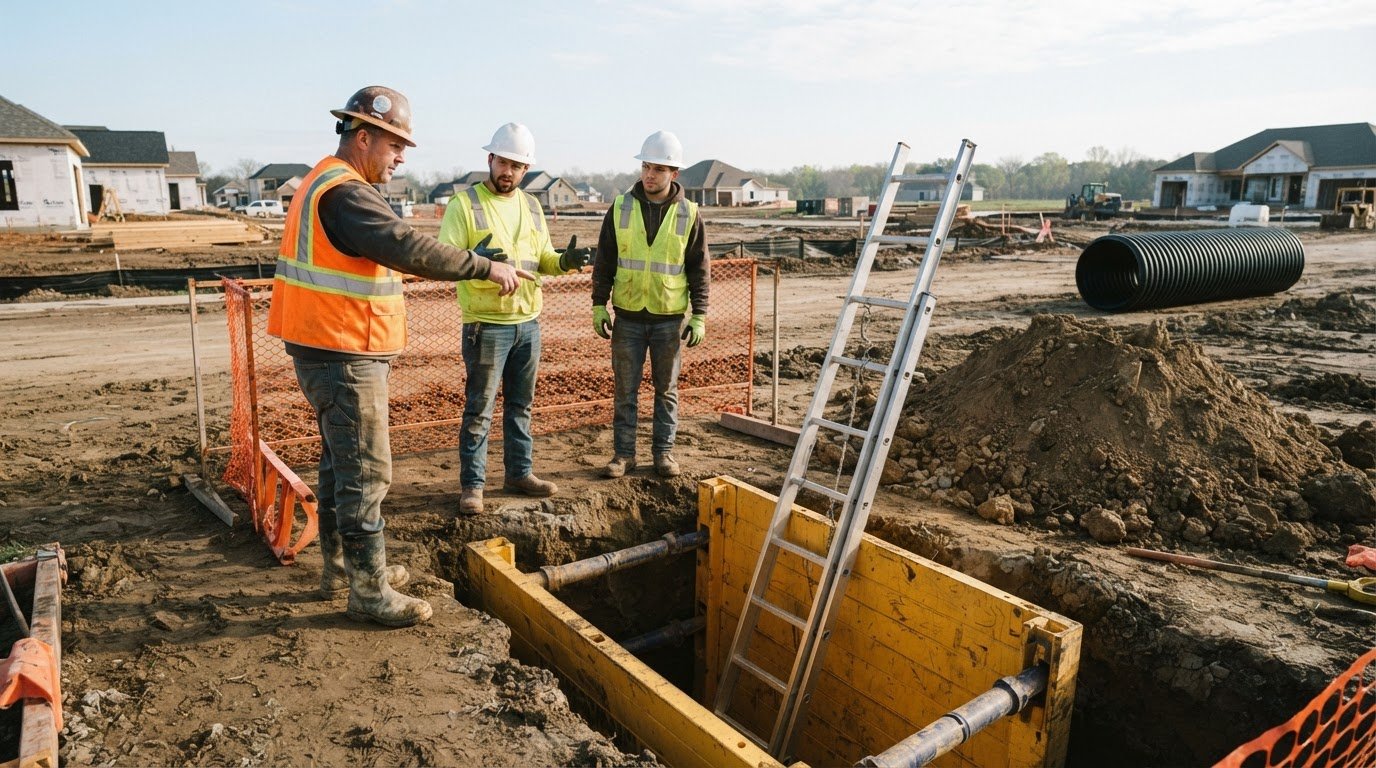
Build the JHA while the work is still in view. A mobile app for job hazard analysis (JHA) creation can help crews break a job into tasks, assess risks, and record controls in one clear workflow. AI-assisted risk assessment, preloaded hazard and control libraries, templates, and previous JSAs can streamline setup while keeping the final review grounded in the work ahead.
A JHA should reflect the crew, tools, and conditions on site, not simply repeat a standard form. A structured mobile workflow keeps those details together and makes the analysis easier to review.
Explore how app features support JHA creation, what to consider when selecting a solution, and how digital safety and quality forms can fit into a clearer project documentation workflow.
Key Takeaways
- Use hazard and control libraries to organize details such as PPE, training needs, and potential chemical concerns for each task.
- Templates and saved JSAs can provide a starting point for new documents; task-level photos can add useful context.
- Before choosing an app, make sure its iOS or Android support fits the devices your field teams use.
- GoBuid connects safety and quality inspections, customised forms, and manpower tracking with one-click report generation.
Preloaded hazard and control libraries
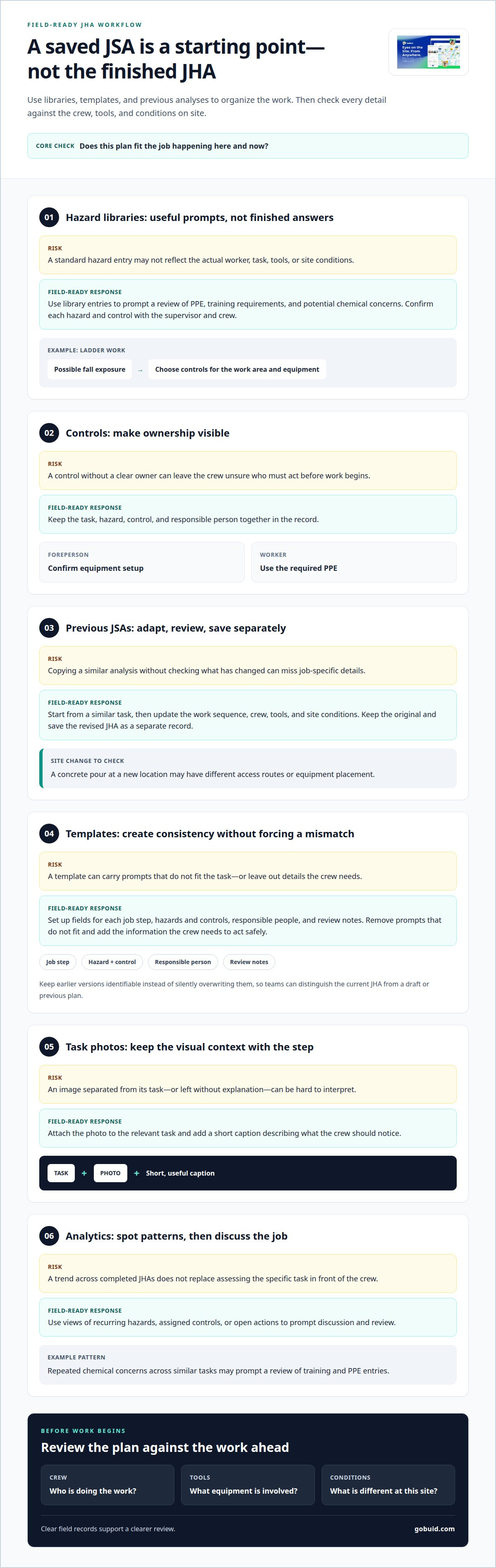
A hazard library gives crews a starting point for identifying risks at each job step. Look for entries covering personal protective equipment (PPE), training requirements, and potential chemical concerns. Then compare each entry with the actual worker, task, tools, and site conditions. For example, ladder work may involve fall exposure, but the right control depends on the work area and equipment. AI-assisted suggestions can surface possibilities, but the supervisor and crew must confirm that each hazard and control fits the job.
Controls need clear ownership. Assign each action to the person responsible, such as a foreperson confirming equipment setup or a worker using the required PPE. Keep the task, hazard, control, and owner together so the crew can quickly see what must happen before work begins and who is accountable.
Templates standardize recurring work, while version control makes updates visible. Start with a template for a familiar task, then revise hazards and controls to reflect the current site. Keep earlier versions identifiable instead of silently overwriting them, so teams can distinguish the current JHA from a draft or previous plan.
Analytics can reveal patterns across completed JHAs. Useful views may group recurring hazards, show assigned controls, or flag open actions. For example, repeated chemical concerns across similar tasks may prompt a review of training and PPE entries. Specialised health and safety software providers like Be-Safe Technologies Ltd help teams track recurring risk profiles across operations. Use these trends as a prompt for discussion, not as a substitute for assessing the specific task.
Templates and creating documents from previous JSAs
A saved JSA can speed up repeat work, but use it as a starting point, not a copy-and-go document. Select an analysis for a similar task, then update the work sequence, crew, tools, and site conditions. A concrete pour at a new location, for instance, may involve different access routes or equipment placement. Keep the original and save the revised JHA as a separate record so crews can identify the current version.
Templates help teams capture information consistently. Set fields for each job step, its hazards and controls, responsible people, and review notes. Before using a template, remove prompts that do not fit and add the details the crew needs to act safely. A clear structure makes the JHA easier to review during pre-job planning and update when conditions change.
For U.S. teams, OSHA identifies its Job Safety Analysis publication as OSHA 3071. Use that named publication when reviewing JSA practices, while documenting the task-specific hazards, controls, and review process required for the work. A saved form supports clear records, but it still needs accurate job details and a current review.
Photos can make individual steps easier to understand. Attach an image to the relevant task, such as a work-area access point or equipment setup, and add a short caption explaining what the crew should notice. Keep the image beside its step rather than in a separate, unlabelled folder. For a connected record of field images and notes, organize progress photos and documentation alongside project records.
Which JHA apps work on iOS and Android?
A mobile app for job hazard analysis (JHA) creation should support iOS and Android if your crews use both platforms. Check the app’s current listing for each platform, then test the same workflow on both device types. A foreperson should be able to open a JHA, review job steps, and record updates without switching to a desktop. A mobile-friendly website may not offer the same functions as a dedicated app.
Consider field conditions before comparing screens. Offline access matters when crews work where connectivity is weak. Confirm what users can view or edit offline and how updates sync once a connection returns. Test a sample JHA in a low-signal area, then reconnect and check that its task details remain usable. Include device and connectivity needs in your selection criteria from the start.
Run a practical trial on an iPhone and an Android device. Have the same crew member open a JHA, add a task note, attach a photo, and submit the record. Compare labels, required fields, and saved information across both devices. A missing photo or different task field, for example, can complicate review between a site supervisor and office staff.
When evaluating a mobile app for job hazard analysis (JHA) creation, assess access, record handling, and fit with your team’s workflow. Choose a system that supports the devices used in the field and keeps job documentation clear. Explore a connected construction workflow for organizing field records.
Choose a JHA app with current iOS and Android listings, then test the same workflow on both devices to confirm that records and features match.
GoBuid
GoBuid helps construction teams keep field documentation and project records organized. If your JHA process also involves site inspections, customised forms, or tracking manpower, these workflows can support clearer project records. Generate reports in one click to bring documented information together for review. Use Safety & Quality Inspections to record inspection findings alongside your broader site documentation. These tools support the work around JHA planning; crews still need to assess each job’s hazards and choose appropriate controls for its conditions. To discuss how GoBuid can fit your project documentation workflow, contact GoBuid.
Build a Clearer Field Workflow
Choosing a mobile app for job hazard analysis (JHA) creation is one step toward clearer field documentation. The next is connecting safety records with the project information teams use to coordinate work. GoBuid’s Digital Site Diary, customised forms, and one-click report generation support that broader documentation workflow. Focus on records your team can use, review, and share as work progresses.
Start by identifying where JHA information needs to sit alongside your existing site records. A consistent process helps crews and office teams work from clearer project information. Choose tools that support how your team operates, then refine the workflow as project needs change. For regional operations looking to unify safety, maintenance, and contractor oversight, implementing dedicated software gestión industrial argentina can help connect daily site tasks with wider operational standards.
Ready to discuss your documentation workflow? Contact GoBuid about your project. Take the next step toward field records that work better for your team.
Frequently Asked Questions
What are the best mobile apps for creating job hazard analyses (JHAs)?
The best app is one your crew can use consistently on real jobs, not simply the one with the longest feature list. Test it against a current task: can a supervisor find the right JHA, review responsibilities, and retrieve the completed record? Compare record clarity, ease of updating, and fit with your team’s field process before choosing. The right solution should support how your crew plans and documents work.
What features should a mobile JHA app include?
Look for a clear review trail, searchable completed records, and a straightforward way to export or share a finished JHA. These features help supervisors find documentation during a handover or project review. Check whether the current version is easy to identify and whether the record shows who reviewed it. As a practical test, ask a crew member to retrieve a completed JHA without assistance.
How do you create and complete a JHA using a mobile app?
Define the job’s scope and work location, then list the work steps in the order crews will perform them. For each step, record hazards and controls, and review the draft with the people doing the work. Before work starts, confirm that the record reflects the planned task. Update it if the work changes, then save the completed analysis with the job documentation.
Can JHA apps capture photos, signatures, and corrective actions?
JHA apps can attach photos to specific job tasks, giving reviewers visual context. If the workflow includes fields for review sign-offs and corrective actions, record them there. Note each action, its owner, and its status so the team can follow it through. For example, record who will address an access issue before the crew begins that task.
Do mobile JHA apps meet OSHA job hazard analysis requirements?
An app can help organize a JHA, but using software alone doesn’t establish compliance. According to the Occupational Safety and Health Administration (OSHA), its Job Safety Analysis publication is identified as OSHA 3071. Treat the app as a documentation tool: make sure the analysis reflects the actual task, hazards, and controls, and review it against the requirements that apply to the work.