Custom Construction Checklist Builder: Create Field-Ready Forms
Use a custom construction checklist builder to create field-ready forms, streamline site inspections, eliminate messy paperwork, and capture clear records.
by Guillermo Sánchez
|
A checklist that misses the work happening on your site creates paperwork, not clarity. Generic forms can skip project-specific inspection points, while paper records can be difficult to organize and retrieve during a review. A custom construction checklist builder helps teams shape forms around real workflows and capture consistent field records.
This guide explains how to define useful inspection points, make completion practical for field crews, and keep finished records organized for review and reporting. GoBuid’s customizable digital forms and 30+ ready-to-use templates give teams a practical starting point. You’ll also see how mobile-first data capture, real-time sync, and report generation can connect completed checklists to clearer project documentation.
Key Takeaways
- Use a custom construction checklist builder to shape prompts and response options around the task crews actually perform.
- Keep the reusable form separate from each completed record, which documents a specific inspection or task.
- Build and trial a checklist by defining the task, required responses, and ownership before putting it into field use.
- Choose a workflow that connects completed forms to project records, so information can support review and reporting.
What a custom construction checklist builder should solve on site
A custom construction checklist builder lets a team create forms around the site tasks and inspections a project requires. Instead of forcing specialty trade work into a generic template, build prompts that follow the crew’s work sequence and capture the evidence project teams need to review.
A reusable template sets the structure for a task. A completed record documents a specific inspection or activity, including the responses and notes entered at the time. A field-ready checklist uses consistent fields to make site records easier to compare, review, and retrieve. Keeping the blank form distinct from each completed record also makes it clear what the team documented for a particular task.
Which checklist details make a field form useful?
Start with the task or inspection name and enough project context to identify where the work took place. Add response fields that match the task, then leave room for notes explaining an exception or recording a follow-up. Use clear, direct prompts so the person completing the form knows what to check and how to respond. Choose response options that fit the item: for example, a pass/fail choice for a straightforward check, or a measurement field when the task requires a recorded value. A general Checklist can guide the basic design principle: make items easy to follow and consistent.
- QA/QC: Record the item or work area reviewed, the result, and relevant observations.
- Safety: Capture the specific site condition or activity being checked, along with notes that explain any finding.
- RFI: Document the related question, location, and supporting context.
- Field checklist: Keep routine task prompts direct, with response options crews can complete efficiently.
GoBuid’s customizable digital forms support project-specific field documentation. Include the fields that help crews complete the task and reviewers understand the record, and remove anything that does not serve either purpose.
How to build and test a custom construction checklist
A custom construction checklist builder is most useful when it turns a clear work process into a form crews can complete without stopping to interpret it. For contractors looking to elevate their on-site operations and project standards, construction consulting firms like PK Services can help map out effective workflows from the start. Define the process first, build the draft around it, then test the checklist before reusing it across the project.
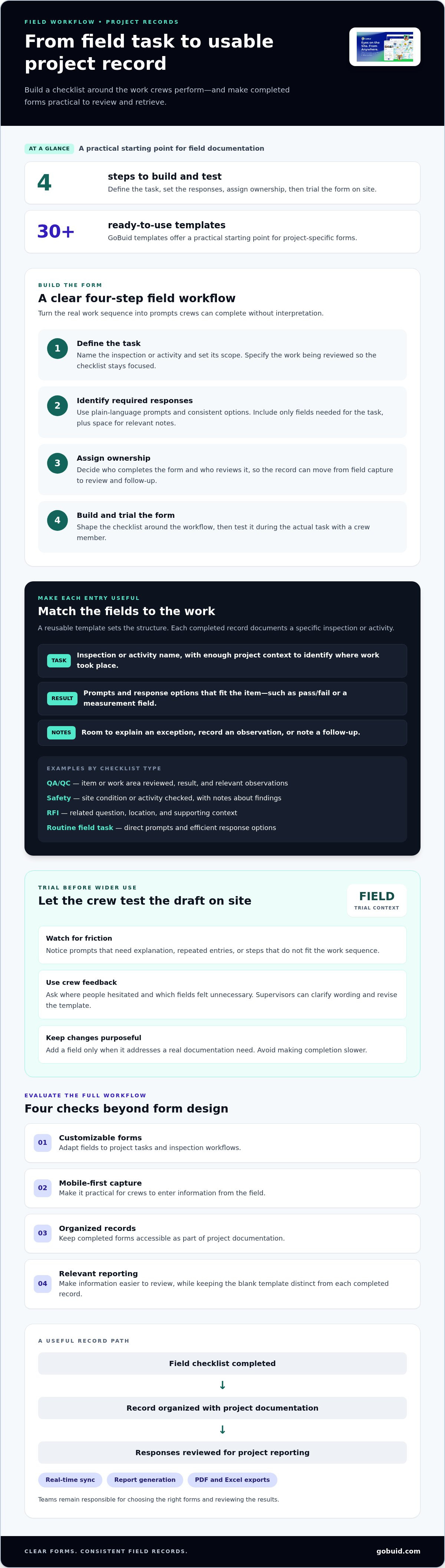
- Define the task. Name the inspection or activity and set its scope. For a QA/QC check, specify the work being reviewed so the form stays focused.
- Identify required responses. Use plain-language prompts and consistent response options. Include only the fields needed to document the task, plus space for relevant notes.
- Assign ownership. Decide who completes the form and who reviews it. Clear ownership helps the record move from field capture to review and follow-up.
- Build and trial the form. Use customizable digital forms to shape the checklist around the workflow, then test it on site.
Pilot the form with the people who will complete it
Have a crew member use the draft during the actual task, not just at a desk. Watch for prompts that need explanation, repeated entries, or steps that do not fit the work sequence. For a quality check, the form should make it straightforward to record what was reviewed and any observation that needs follow-up. This supports the practical role of inspections described in Quality Control in Construction.
After the trial, ask the crew where they hesitated and which fields felt unnecessary. Supervisors can review that feedback, clarify the wording, and revise the template before wider use. Keep the next version focused: add a field only when it addresses a real documentation need, rather than making completion slower.
GoBuid’s construction management software supports project-specific form workflows. Explore GoBuid construction management software as you plan how field forms fit into project documentation.
Choose a checklist builder that connects completed forms to project records
A useful custom construction checklist builder should do more than let you design a form. It should make it practical to capture information in the field, keep completed records organized, and use those records in project reporting. Evaluate the whole workflow, not just how the form looks on screen.
- Customizable forms: Adapt fields to project tasks and inspection workflows.
- Mobile-first capture: Make it practical for crews to enter information from the field.
- Organized records: Keep completed forms accessible as part of project documentation.
- Relevant reporting: Make captured information easier to review, while keeping a blank template distinct from a completed record.
GoBuid combines customizable digital forms with ready-to-use templates, mobile-first data capture, and real-time sync. Automated reports help teams turn project information into documentation for review. Teams remain responsible for choosing the right forms and reviewing the results.
Connect checklist responses to usable documentation
A completed digital form can contribute to a broader project record alongside other site documentation. For example, a supervisor can review inspection responses with related project notes when preparing a status update. GoBuid supports report generation with PDF and Excel exports. Its reporting feature helps teams create reports from project information.
Choose a workflow that keeps field capture straightforward and makes the resulting information useful beyond the moment of completion. Explore GoBuid’s construction management platform to see how its forms and reporting tools support project documentation.
Make the next checklist work harder
A field form should keep earning its place after crews complete it. Review the records for unclear prompts, recurring follow-up needs, or steps that no longer match the workflow. Then refine the template so the next round of documentation is more useful to the field team and the people reviewing project progress.
A custom construction checklist builder can support that improvement when forms reflect actual site work and completed records stay accessible. GoBuid offers customizable digital forms, ready-to-use templates, and automated report generation with PDF and Excel exports to support the process.
Start with one checklist your team uses often, learn from the completed records, and build from there. Explore GoBuid’s construction management software to put a clearer documentation workflow in motion.
Frequently Asked Questions
What is a custom construction checklist builder?
A custom construction checklist builder is a tool or workflow for shaping forms around a project’s actual site tasks. A practical test is whether crews can complete the form consistently and supervisors can find the resulting record later. For a recurring specialty trade task, reuse the same form structure while keeping each completed submission tied to its own work instance.
Is a digital construction checklist better than a paper checklist?
Neither format is automatically better. The right choice depends on the crew’s workflow and how records are handled afterward. Compare how easily workers can complete the checklist, how supervisors review it, and how quickly someone can retrieve a past record. Digital forms suit teams that manage documentation electronically, while paper may fit a workflow built around physical files.
Can one construction checklist be reused across projects?
Yes. A checklist can serve as a starting point, but review it whenever project scope, work sequence, or documentation practices change. For example, if a project targets sustainable building standards, check out Ekocentric for guidance on aligning field documentation with green certification requirements. Keep the current template distinct from earlier completed records, so revisions do not obscure what a crew documented at the time. Feedback from field users can show which prompts remain useful and which need adjustment.
What should a team do when a checklist identifies an issue?
Document the finding with enough context for someone who was not present to understand it, then follow the team’s established review and follow-up process. For example, note the relevant work area and describe the observed issue clearly. Keep the initial finding distinct from later follow-up records. A submitted checklist documents an observation, but does not by itself show that the issue was resolved.